
Appearance
Time Entries
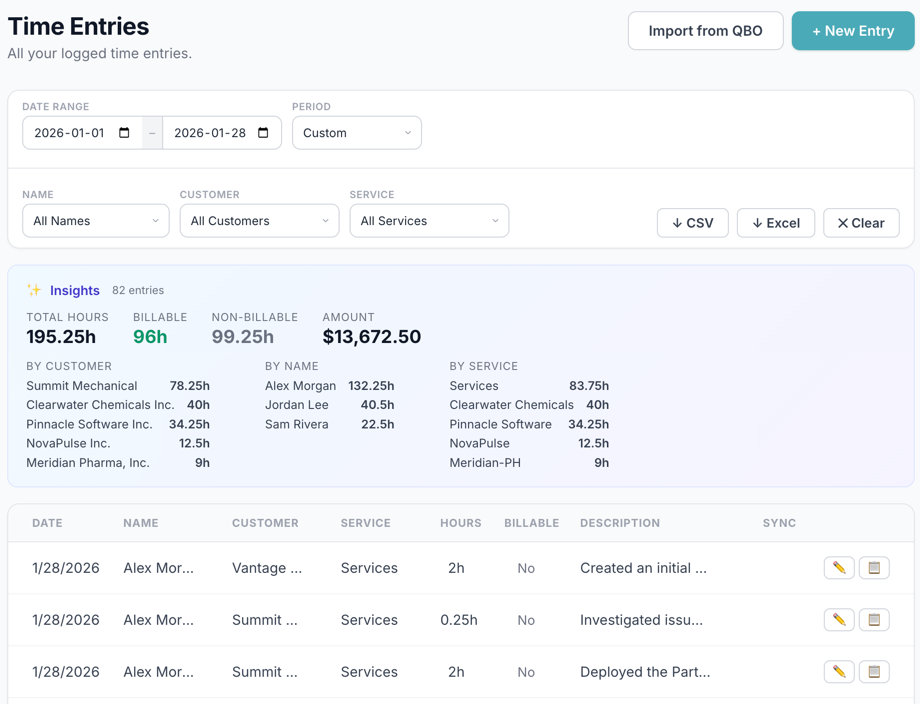
Time entries are the core of Hourli.ai. Each entry records who did the work, for which customer, what service was provided, how long it took, and a description.
Creating a Time Entry
From the Web App
- Click the + New button (or navigate to Time Entries and click New Entry)
- Fill in the fields:
- Employee/Vendor: who performed the work
- Customer: the client being billed
- Service: the type of work
- Date: when the work was done
- Hours: duration
- Rate: hourly rate (auto-filled from service, can be overridden)
- Billable: whether this entry is billable
- Description: what was done
- Click Save
The description field includes two AI-powered buttons: Fix Grammar to clean up spelling and punctuation, and Rewrite to turn rough notes into a professional, client-ready description. See AI Features for more details.
From the Chrome Extension
See Chrome Extension for AI-powered entry creation from Gmail.
Filtering & Searching
The time entries list supports several filters:
- Date range: presets (This Week, Last Week, This Month, Last Month) or custom dates
- Customer: filter by specific client
- Service: filter by work type
- Employee/Vendor: filter by team member
Filters persist for your session so you can drill down into specific data.
Every time you apply or change filters, an AI-generated summary automatically appears at the top of the page with insights about the filtered entries, such as total hours, billable breakdown, and trends. This gives you an instant overview without needing to scan through individual entries.
Exporting
Click the Export button to download your filtered entries as:
- CSV: for spreadsheets and custom processing
- Excel: formatted
.xlsxfile
Exports respect your current filters, so apply the filters you want before exporting.
TIP
Users without rate viewing permissions will see exports without rate and amount columns.
Copying an Entry
Click the copy icon on any entry to duplicate it. This opens the new entry form pre-filled with the same customer, service, hours, rate, and description. Useful for recurring work.
Sync Status
If QuickBooks is connected, each entry shows a sync status badge:
| Status | Meaning |
|---|---|
| Synced | Successfully pushed to QuickBooks |
| Pending | Queued for next sync cycle (every 5 minutes) |
| Failed | Sync attempt failed, can be retried |
Invoiced Entries
Once a time entry is added to an invoice, it's marked invoiced and locked. It shows a 🧾 badge in the list, and its edit button links to the invoice instead of the editor. Locked entries can't be edited or deleted until they're removed from the invoice (by editing, voiding, or deleting that invoice).
Trash & Soft Delete
Deleting a time entry moves it to Trash rather than permanently removing it. From Trash you can:
- Restore an entry back to the active list
- Permanently delete it (irreversible)
This protects against accidental deletions, especially for entries that have already synced to QuickBooks.